COMPLETE ALL STEPS BELOW AS DIRECTED
OBS Studio
Open Broadcaster Software or OBS Studio (OBS) is a free and open-source, cross-platform
screencasting and streaming program. It is available for Windows, macOS, Linux distributions,
and BSD. OBS was chosen as client software for hams.live for several reasons, but primarily
because OBS has internal embedded web browser functionality which can render the online
SDR Sources. Go to https://obsproject.com/ and download the latest version of OBS.
Websockets Plugin
AFTER successfully installing OBS Version 30 production or later , please download OBS Websocket 4.9.1 compat:
Releases · obsproject/obs-websocket (github.com)
After installing OBS Websocket 4.9.1 compat , in the OBS menu under Tools there should now be a
new entry called Websockets Server Settings (4.x Compat). Select this entry:
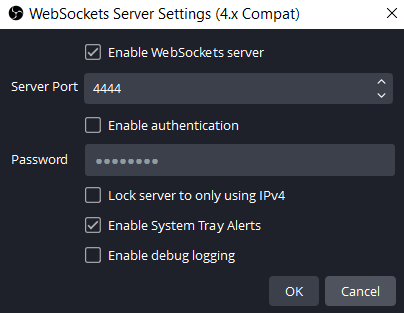
Make sure that:
Enable Websockets Server is CHECKED
Server Port is 4444
Enable Authentication is UNCHECKED
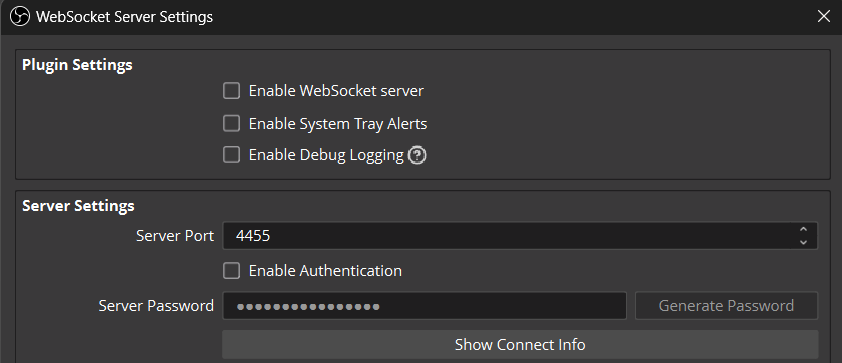
In OBS also under the Tools menu, there is another entry called Websocket Server Settings. Select this entry.
Make sure that the settings match what is shown below, including a Server Port setting of 4455. Click Apply and OK.
OBS DASHboard
In OBS, go to DOCKS - CUSTOM BROWSER DOCKS
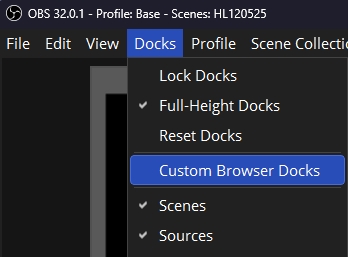
In the DOCK NAME field, enter DASH
In the URL field, enter https://hams.live/webs/
Click Apply and Close.
The new DASH window can be integrated into the OBS interface by dragging to desired
location. DASH is used to control SDR settings and will display controls allowing settings
for all SDR Sources to be made.
Source Image Files
There are some image files that need to be stored on your local PC in order for optimum
display of SDRs. On your local PC, create a new directory folder under the C drive root and
name it obsfiles
Go to the download page at https://hams.live/obsfiles
Select all PNG image files there and download these (it will be one ZIP file) to your local PC.
EXTRACT ALL files into the newly created directory folder c:/obsfiles/
Scene Collection
hams.live Scene Collection files are available for download at the
following webpage: https://hams.live/hlfiles/
Download at least one of the scene collection files, and then import into OBS (main menu,
Scene Collection-Import).
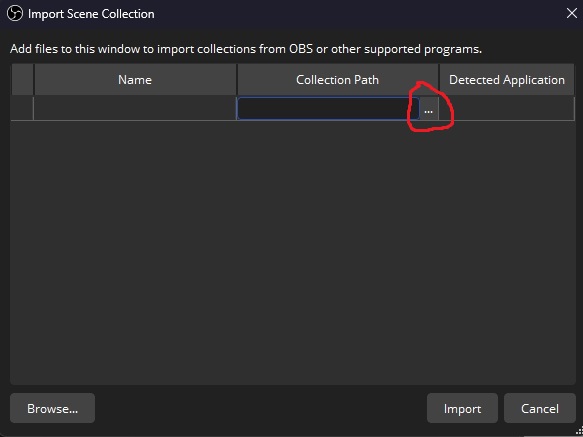
In the Import Scene Collection dialog, click the three dots under Collection Path and
then select the scene collection file that you downloaded. Click Import and close.
Now in OBS under Scene Collection, this filename will be a choice to select.
Browser Source OBS Setting
In the OBS menu, select FILE- SETTING-ADVANCED, and then scroll down to the Sources section.
make sure that Enable Browser Source Hardware Acceleration is UNCHECKED.
Click Apply and OK.

After completing above installation steps, you should be ready
to activate SDRs and use the system! For a user tutorial, please
visit the User Tutorial.