
theGateway Lite User Tutorial
Introduction
theGateway Lite is a simple, lightweight browser extension for Microsoft Edge and Google Chrome that lets you open, monitor, and control multiple KiwiSDR receivers from one place. This tutorial walks new users through installation, setup, and basic operation.
- open up to 5 SDR receivers at once
- mute/unmute SDR audio with one click
- instantly sync frequency, mode, and waterfall zoom
- refresh or retune SDRs from the side panel
- choose from hundreds of online SDRs
- keep selections saved automatically
Opening Extension
After installing the extension, click the theGateway Lite icon in your browser toolbar. The side panel will open on the right side of your browser window.

Choosing SDRs
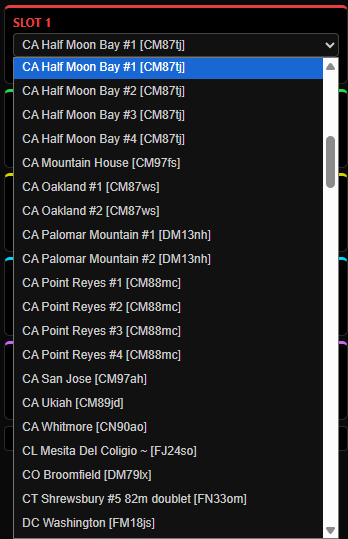
Each slot has a dropdown list of available SDRs.
Activating Slots
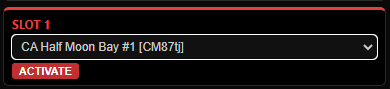
Choose an SDR from the dropdown
Click Activate button
The first SDR opens in main browser window
SDR may not be running yet
The slot turns green to show it’s active
Confirm Each SDR Tab is Running
After activating one or more slots, open each SDR tab to make sure the receiver is actually running.
Some SDRs require a callsign entry. You may see a box asking for your callsign before SDR starts.
For each browser, this is a one time entry.
Some SDRs require a “Click to Start”. The SDR will not load until you click start.
If all SDR slots are is full, you are given options to enter Queue and/or Camp mode.
Queue: you wait for next open slot.
Camp: you can click on an occupied slot if the frequency/mode matches, and SHARE their audio connection.
SDR Synchronization
theGateway Lite and theGateway both operate with the hams.live system, with SDR systems links all under a common domain name. This unique design enables all SDR sites to be easily synchronized for FREQUENCY, MODE, and WATERFALL ZOOM level.
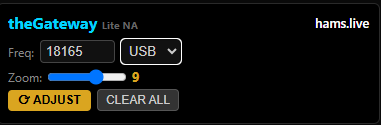
Use controls at the top of the panel to instantly synchronize all active SDR tabs by entering desired values and clicking ADJUST. Any SDRs running will refresh.
By changing one of the values (e.g., Zoom level) and clicking ADJUST, a refresh of all running SDR tabs will occur. This is very useful, as many SDR sites have a timeout interval. Most sites will reset this timer and re-load with a refresh.
The CLEAR ALL button will de-activate all running SDRs/tabs.
Click MONITOR button in each Slot to toggle mute/unmute for that SDR.
Users can see in the upper area of each SDR tab running the name/location of that SDR, which can be correlated with the names in the Slots. Generally though, managing which SDR to listen to can all be done in the Slots area.
The system will allow multiple audio streams at once, but generally, due to latency only one SDR should be monitored at a time.